Menu Navigation
Lists ... Accounts Receivable ... Invoices
Activities ... Accounts Receivable ... New Invoice
Activities ... Accounts Receivable ... New Refund
About Invoices and Refunds
Invoices are the transactions used to record the sale of goods and services to your customers. This one screen (see Figure 5-1) can be used to record point of sale transactions which are paid immediately, or transactions which are charged to an account and paid later. For returns or mistakes, refunds can be entered to reverse the invoice transactions. This screen also supports point of sale equipment (barcode scanners, cash drawers, pole displays, etc. ) for easy integration in a retail environment.
In this Topic
Field by Field Help - Invoice screen
Point of Sale vs. Accounts Receivable
Payment Details
Field by Field Help - Payment Details Screen
Invoice Item Details
Intellisearch
Batch Printing Invoices
Issuing Refunds
Accounting For Invoices
Q & A - Invoices and Refunds
Related Topics
2.7 How to Use Lists
2.10 How to Use Activities
3.1 Setup Accounting
3.9 Setup Forms
3.4 Shipping Methods
4.1 Customers
5.3 Customer Payments
5.2 Customer RMAs
5.8 Tax Codes
6.1 Sales Quotes
6.2 Sales Orders
9.1 Supertrack Inventory
10.3 Return Processing
Field by Field Help - Invoice screen
Buttons
Save
Click this button or press <Enter> to complete the transaction.
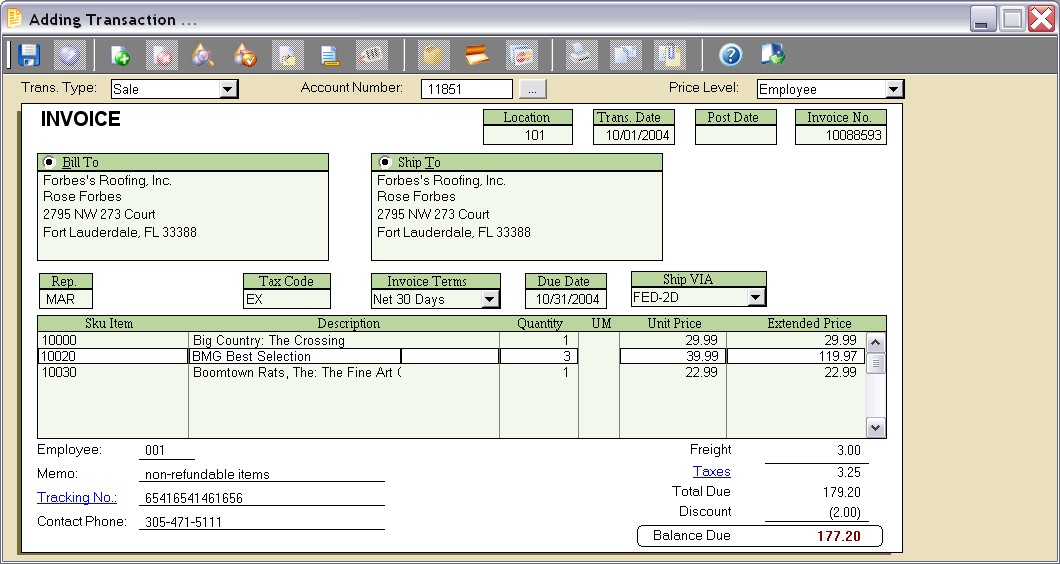
Figure 5-1. Invoice and Refund screen
Insert Item
Click this button to insert a new line item into the invoice.
Delete Item
Click this button to delete the currently selected detail item.
Search for Item
Click this button to search supertrack inventory for an item to be placed on this transaction.
Item Profile
Click this button to view the selected item's supertrack inventory record. You can then view and/or make changes to the record from the window that comes up. Note that any changes you do make will not immediately affect the line item in the transaction you are currently creating unless you delete and re-add the item.
Item Notes
Click this button to view/edit the transaction item note for the currently selected detail item. This note will be printed on the invoice following the item. This button will be disabled, however, if the description of the item has been restricted in the transaction options of the specific supertrack inventory record.
Transaction Notes
Click this button to view/edit a large note to be printed in bold at the bottom of the printed transaction.
Serial/Lot Numbers
Click this button to view, add, or remove serial numbers for the currently selected detail item. This button will be displayed only when an item is selected which has been activated to allow serial number use.
Payment Details
Click this button to view any payments that have been applied, partially or completely, against the invoice or refund transaction.
Credit Card History Search
Click this button to search for a previously completed invoice, based on the credit card that was used to pay it. This button is available on refund transactions only.
Click this button to reprint a previously completed transaction. This button will be disabled when creating a new transaction. However, an option to print the transaction will be given upon completing the new transaction.
Click this button to e-mail a previously completed transaction. This button will be disabled when creating a new transaction. However, an option to e-mail the transaction will be given upon completing the new transaction.
Attach documents to this record
Click this button to view or attach documents to this record in the Intellifile Explorer.
Header Fields
 | Many fields on this screen can be optionally hidden, if they are of no use to your company. See the Preferences tab, in the Sales Invoices category of Setup ... Accounting.
|
Trans. Type
Select the type of transaction to be created. Choose from sale, refund, or quote. This field will be disabled in edit mode, or if a specific type of transaction was selected from the main menu.
Account Number
Enter or select the account number of the customer to be invoiced. If this is an "over the counter" sale, leave the account number blank. Invoices with no account number must be paid in full.
Price Level
Select the price level that is to apply to this sale. This field will contain the default level for customer or the customer's class code, if a customer was chosen. This value may be optionally locked.
Location
Displays the location where the sale will be recorded. This value cannot be changed.
Trans. Date
Displays the date of the sale transaction. Sales Invoices can be backdated or future dated, if desired. This value may be optionally locked.
Post Date
Displays the date that this transaction was posted. Paid invoices and refunds will be immediately posted. Transactions on account will be posted by statement processing. The post date has no effect on general ledger posting. This value cannot be changed.
Invoice No.
Displays the sequential, internally-generated number assigned to this transaction. This value cannot be changed.
Bill To
Displays the billing address of the customer. This address can be edited by clicking the radio button provided.
Ship To
Displays the shipping address of the customer. This address can be edited by clicking the option button provided.
Rep.
Enter the employee ID of the salesperson here. The program may provide a default value, depending upon the option selected in the Sales Invoice category of Setup ... Accounting.
P.O. Number
If your customer uses a purchase order number to approve their purchases, and they want to have a purchase order number referenced on the invoice, enter it here. This field will be present only if an account number is provided.
Tax Code
Displays the tax code of the customer. If no customer was chosen, it will not appear on the screen and the location's tax code will be used instead. This field will be present only if an account number is provided.
Invoice Terms
Select the terms by which this invoice must be paid. This field will be present only if an account number is provided.
Due Date
Shows the date payment is due for this invoice. It can be adjusted by the use of the terms field, or manually by typing in a due date. This field will be present only if an account number is provided. Invoices paid after this date may be subject to finance charges.
Ship Via
Select the shipping method that will be used to send these items to the customer. This field may optionally be defaulted based on customer or company setup.
User Defined Field
The user defined field's title can be changed in the Sales Invoice category of Setup ... Accounting.
 | You can press <Ctrl+M> to use a calculator on all numeric fields and <Ctrl+N> for a calendar on all date fields anywhere in ManageMore. This will fill in the calculator result or the calendar selection into the current field. To remember these convenient keys, think of "M" for Math and "N" for caleNdar.
|
Detail Fields
SKU Item
Enter the identifying code of the item being sold. Serial Numbers, UPC Code, SKU Alias, and SKU Attribute 1 can also be used to enter a SKU Item. A barcode reader may optionally be used to enter this field.
Description
Displays the description of the SKU Item chosen. This field may be optionally skipped and/or locked, depending upon the item selected.
Quantity
Enter the number of units of the SKU Item being sold. This field will contain a default value based on the SKU Item setup in Supertrack inventory. This field may be optionally skipped and/or locked, depending upon the item selected. The number of decimal places displayed in this field is determined by the quantity precision setting in the Inventory section of Setup ... Accounting.
UM
Displays the unit of measure used when selling this item. Quantities will reflect this unit of measure.
Unit Price
Enter the price per unit for this item. This value will be computed based on supertrack inventory, class code price level, alias pricing, customer pricing and/or promotional pricing in effect. This field may be optionally skipped and/or locked, depending upon the item selected. The number of decimal places displayed in this field is determined by the price precision setting in the Inventory section of Setup ... Accounting.
Extended Price
The unit price multiplied by the quantity. Changing this field will recompute the Unit Price. This field may be optionally skipped and/or locked, depending upon the item selected.
Footer Fields
Employee
Displays the employee ID of the employee creating the transaction. This value cannot be changed.
Memo
Enter a reference note about the transaction here. This value will not print on the document.
| You may want to include a policy or other message on the bottom of every document. A standard policy message which will print on the document can be set for each transaction type in Setup ... Forms.
|
Tracking No.
Enter the tracking number related to the shipment of this invoice. You can click on the prompt for this field to view/edit a list of multiple tracking numbers, if applicable for this transaction. This field can be automatically filled, if the Shipping Manager Module is used for the shipping method chosen.
Contact Phone
Enter the phone number where this customer can be contacted. This field may be required depending upon the shipping method chosen. This field is defaulted to the Contact Phone for the customer's ship to address, if an account is chosen.
Freight
Enter the freight amount that the customer is being charged, if any. This field can be automatically computed, based upon the settings in the shipping method chosen.
Taxes
Displays the total amount of tax that is being charged. The user may click on the prompt for this field to display, and optionally edit the detail taxes by type.
Total Due
The gross total of the invoice, computed by the program to equal the sum of all detail items' extended price, plus freight and taxes.
Discount
Enter any invoice discount here. The value will display as a negative value on sales invoices and as a positive value on refunds.
Balance Due
The final total of the invoice, computed by the program to equal the total due minus any discount. This value will also reflect any payments received against this transaction.
Point of Sale vs. Accounts Receivable
Two distinct sales models can be handled by the sales invoice screen.
Point of Sale
This business model is characterized by a relatively high sales volume, no customer data entry, and immediate payment of transactions.
To accommodate the point of sale business model, many of the detail fields (such as account number) may be removed, using the options in the Sales Invoices category of Setup ... Accounting. Automatic pricing can be calculated and quantities and pricing can be skipped and locked, using settings found in Inventory.
In addition, the program supports a wide array of sales automation equipment, such as bar code readers, cash drawers and pole displays. See the POS Hardware category of Setup ... POS for details. A user-specific "point of sale mode" can even be activated in the Security Administrator which allows repeat transaction creation without user menu/toolbar selection.
Accounts Receivable
This business model is characterized by a relatively low sales volume, detail customer data tracking, and application of balances for later payment.
To accommodate this business model, the program supports a detail contact manager and customer database. Item descriptions, quantities and pricing need not be defaulted and can be overridden on each transaction, if desired.
In addition, the program can record sales quotes and sales orders, which can be converted into invoice transactions. Customer RMAs can also be created to approve returns. Additionally, detailed aging reports, customer statements, collection notices, and finance charges can be processed to assist in collections.
Payment Details
When the invoice is accepted, the invoice payment screen will pop up. If a customer account was chosen, the user can choose to apply the invoice to a customer's balance. If not, or if desired, the user can accept full or partial payment. You can split the tender (payment types) up to three ways.
Field by Field Help - Payment Details Screen
Tender Fields
Payment Type
Select the type of payment customer is making.
Ck No. / Credit Card
Enter the check number or credit card here when a check or credit card payment type is used.
Ck / Exp Date
Enter the date the check was written or the expiration date of the credit card being used. Only applicable when check or a credit card payment type is being used.
CVV2
Enter the CVV2 or CVC2 code on the credit card here for security purposes on a credit card payment. This field may be hidden by selecting it in Setup ... POS.
| CVV2 stands for Card Verification Value 2, used and named by Visa, while CVC2 stands for Card Validation Code, used and named by MasterCard. CID stands for Card Identification Digits, used and named by American Express.
|
Amount
Enter the amount being paid using the particular payment type.
Street Addr
Enter the numerical portion of the street address here for AVS matching on a credit card payment. This is matched up to a customer's billing information in the credit card processor's database, providing more security on credit card payments.
Zip Code
Enter the customer's five-digit billing ZIP code here for AVS matching on a credit card payment. This is matched up to a customer's billing information in the credit card processor's database, providing more security on credit card payments.
Other Fields
Use credit card on file
When checked, uses the credit card stored in the customer's record. This field will be present only if a credit card number has been stored in the customer's information.
Credit to Apply
This field will appear if the customer chosen currently has a credit balance. Enter the amount of this credit to apply to the invoice.
Balance Due
Displays the amount of the invoice that is still outstanding (after payment application).
COD Amount
Enter the amount to be collected by the shipping carrier. This amount can be different from the invoice amount. This field will only be present if a COD type shipping method is chosen.
Cash Back
When a debit card payment type is used, enter the amount of cash back desired by the customer here.
Buttons
Apply Balance
Click this button to apply the remainder of the balance due to the customer's account for future payment. This option is only available for invoices assigned to a customer account. This button may be optionally locked.
OK
Click this button to accept the payment information as it is.
Cancel
Click this button to discard the payment information and go back to the invoice screen.
Invoice Item Details
ManageMore allows you to view a list of the items on each invoice or refund transaction without having to open the transactions individually. By clicking on the Show invoice item detail list button on the Invoice list window, ManageMore shows a listing of all of the items found on the corresponding invoices. This list can then be sorted and viewed like any other list box in ManageMore; it can also be used to create custom IntelliQueries and reports.
Intellisearch
The Intellisearch method is an easy-to-use, convenient method of searching for items in your Supertrack inventory. The power of Intellisearch lies in its ability to retrieve Supertrack items by a keyword or phrase in the item's description. Intellisearch can look for items even if you do not know the exact spelling of the keyword or phrase, or if partial words are entered.
 Lets say you have several items entered into inventory, with descriptions as follows:
Deluxe Widget with Gold Trim
Widget Professional 2000
Standard Base Model Widget
A search for "Widget" or even "Widjit" or "Wigit" will find any of these items.
To activate the Intellisearch feature, select Setup...Options...General Options and check the box labeled "Allow fast inventory description searches using Intellisearch lookup engine" in the Company Setup tab. Click OK to save the new settings.
Once you have enabled Intellisearch, a new tab labeled "Intellisearch" will be present in your Supertrack inventory in Lists...Inventory...Supertrack Inventory List. You will also see this tab whenever you click the SKU Search button on a transaction. To use the Intellisearch feature, simply switch to the Intellisearch tab and type a keyword or phrase that identifies the item in the Search field. You will be presented with a list of Supertrack items with descriptions that match the word(s) you have entered.
Check the box labeled "Search inventory from current location only" to search items only from the location in which the user is currently located. Check the box labeled "Use Sounds-like Search Method" if you want the program to search for keywords based on pronunciation instead of spelling.
Batch Printing Invoices
ManageMore has a capability to print multiple invoices at once. By clicking on the Batch Print Invoices button, you can choose to print invoices from a particular date or transactions number range. You may also choose to print refunded and voided transactions as well. This process is mainly for those companies who want a hard copy of their transactions at the end of a given time period for use in other operations of the business or for record keeping without having to print transactions individually.
Specific Location
Enter or select the location from which transactions should be printed.
To Be Printed/Specific Range
Choose whether a date range or transaction number range should be considered in printing. If a date range is used, the transactions will be marked as printed and will not print again under the date range criteria. If a specific range is used, the transactions will print, regardless of whether they have printed before or not.
Date Range
Select the date range for which you want transactions to print. This option is available only when To Be printed is chosen above.
Starting/Ending Date
Select or enter the starting/ending date for which you want transactions to print. This option is available only when To Be printed is chosen above.
Starting/Ending Transaction No.
Enter the exact starting/ending transaction number for which you want transactions to print. This option is available only when Specific Range is chosen above.
Issuing Refunds
Refunds (also referred to as credit memos) are used to reverse all or part of sales invoice transactions. A refund can be created by selecting an existing invoice and selecting the delete button, by selecting the Refund menu item, or by selecting the Refund transaction type from the invoice screen.
If an original invoice was selected, or is entered in the Ref Invoice No. field, the original invoice details will automatically be filled. The quantities remaining to be refunded may optionally be filled. Alternatively, Customer RMAs may be used to pre-approve refund transactions. If this option is used, a Ref RMA No. will be entered.
When completed, the refund may be paid to the customer by recording the amounts on the Payment Details screen. Cash tender will be limited to original cash tender. Check tender can cause an optional company check to be created. If this refund is for an outstanding customer account, it may be applied all or in part to the account using the Apply Refund button.
Accounting For Invoices
All Items
|
|
Dr
|
Cr
| |||
|
Accounts Receivable GL Account
(From Setup Accounting) |
XXXX
|
| |||
|
|
|
| |||
Income GL Account
|
|
XXXX
|
Freight/Discounts
|
|
Dr
|
Cr
|
|
Accounts Receivable GL Account
(From Setup Accounting) |
XXXX
|
|
|
|
|
|
|
Freight/Discount GL Account
(From Setup Accounting) |
|
XXXX
|
Taxes
|
|
Dr
|
Cr
|
|
Accounts Receivable GL Account
(From Setup Accounting) |
XXXX
|
|
|
|
|
|
|
Tax Liability GL Account
(From Tax Codes) |
|
XXXX
|
Tangible Inventory Items Only
|
|
Dr
|
Cr
| |||
|
Cost of Goods Sold Account
(From Supertrack Inventory) |
XXXX
|
| |||
|
|
|
| |||
Inventory GL Account
|
|
XXXX
|
Refunds are the reversal of invoice entries.
Q & A - Invoices and Refunds
| Q01. | Can I print a packing slip for invoices created?
|
| A01. | Yes. Simply activate the option in one or more Shipping Methods. Then, when the particular shipping method is used, the packing slip will automatically print after the invoice is printed.
|
|
|
| Q02. | Can I enter trade-in/returned items (negative quantity) items on the same transaction as positive quantity items?
|
| A02. | There is an option to allow such invoices on the Setup ... Accounting screen, in the Sales Invoices category.
|
|
|
| Q03. | What if I want to examine refunded items, before returning them to inventory?
|
| A03. | Activate the Return Processing feature on the Setup ... Accounting screen, in the Sales Invoices category. See the related topic for more instructions.
|
|
|
| Q04. | How do I edit the tax amount?
|
| A04. | You must first activate the option to Allow tax override on sales invoices in the Sales Invoices section of Setup ... Accounting. Then, when entering an invoice, click on the Taxes field to view/edit the tax details.
|
|
|
| Q05. | Can I prevent my employees from making changes to the item pricing on the invoice?
|
| A05. | You can do so by either setting up a password in Setup ... Accounting ... Sales Invoices ... Security, or by clicking on the Options tab of the individual item's supertrack inventory record.
|
|
|
| Q06. | How do I apply the balance of an invoice to a customer's account for later billing?
|
| A06. | When asked for payment on an invoice, you should click the Apply Balance button.
|
|
|
| Q07. | When I try to apply the balance to a customer's invoice, ManageMore comes up with a box that says "Customer does not have privileges for invoice terms or due date defined." How do I stop this?
|
| A07. | You will need to close the invoice, then edit the customer record. Once there, click on the Personal tab, and make sure the checkbox labeled "Allow On Account purchases" is checked on.
|
|
|
| Q08. | How do I do a credit memo in ManageMore?
|
| A08. | Credit memos are simply refund transactions. You can change the title of a refund transaction to a credit memo in Setup ... Forms ... Sales Invoices, and changing the refund header.
|
|
|
| Q09. | I have to refund a transaction to a customer's account, but I do not want it to affect the earliest invoice. How can I refund a paid invoice to their account and affect another invoice?
|
| A09. | In this case, you should refund the original invoice, and when asked for payment, select a credit tender type payment method (except for Refund Credit). Then enter the amount of the refund and click OK. Then you can create a manual payment on the account, select the same payment method you chose in the last step, then enter the amount of the refund in the field provided. You can then select the topion at the bottom of the payment record to choose specific invoices, and then select where the credit should go.
|
|
|
| Q10. | I don't see my question here. Where else can I get information?
|
| A10. | Visit our website's Technical Support section.
|
