Menu Navigation
Activities ... Accounts Payable ... Pay Bills
About Paying Bills
The Pay Bills feature can be used to quickly select and pay multiple purchase receipts (bills) at one time. This process allows the user to select the criteria for bill payment, such as how old the bills must be before payment. This will then create a batch of bills to pay. The batch can then be reviewed and adjusted if necessary. When the batch is posted, the system will automatically create the disbursements desired, and produce checks to be printed, if necessary.
In this Topic
Quick Help - Paying Bills
Field by Field Help - Bill Payment Criteria screen
Viewing Bills to Pay
Field by Field Help - Bills to Pay screen
Posting Bills
Field by Field Help - Post Bill Payments screen
Q & A - Paying Bills
Related Topics
2.10 How to Use Activities
8.1 Vendors
8.5 Purchase Receipts and Credits
8.6 Disbursements
11.4 Printing Checks
Quick Help - Paying Bills
| 1) | Enter Purchase Receipts (Bills) for items and services received from vendors.
|
| 2) | Select the Pay Bills menu option.
|
| 3) | Click the Build Batch button to select bill payment criteria.
|
| 4) | Enter the criteria for selecting bills, and click the Begin Building List button.
|
| 5) | Click the Edit button to review the Bills to Pay. Check/Uncheck bills to pay.
|
| 6) | Click the Post button to post the bills and create disbursements/checks to print.
|
Field by Field Help - Bill Payment Criteria screen
Begin Building List
Click this button to accept the criteria and begin building a list of bills to pay.
Close this Window
Click this button to discard the criteria and return to the previous window.
Location
Enter or select the location whose bills are to be paid. Leave this field blank to review all locations.
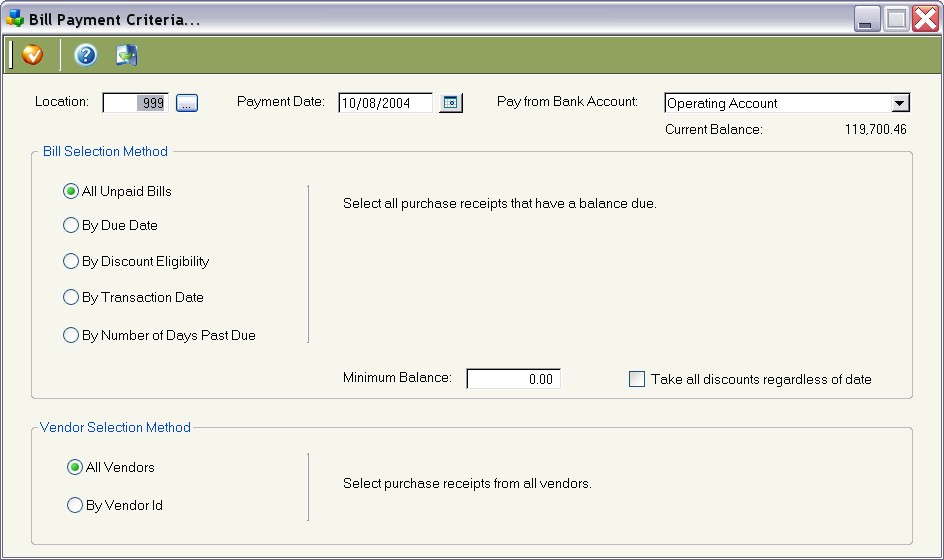
Figure 8-5. Bill Payment criteria screen
Payment Date
Enter or select the date that should reflect on the payment (disbursement) made for these bills. This date will default to today's date.
Pay from Bank Account
Select the bank account to be used in paying the bills to be selected.
Current Balance
Displays the current balance as calculated by ManageMore for this bank account.
Bill Selection Method
Choose the manner in which bills will be selected for payment. These include:
| All Unpaid Bills | Reviews all purchase receipts and selects those that have a balance due.
|
|
|
| By Due Date | Reviews all purchase receipts and selects those that are unpaid and have a due date on or before the user-selected date.
|
|
|
| By Discount Eligibility | Reviews all purchase receipts and selects those that are unpaid and will lose their discounted status on or before the user-selected date.
|
|
|
| By Transaction Date | Reviews all purchase receipts and selects those that are unpaid and have a transaction date on or before the user-selected date.
|
|
|
| By Number of Days Past Due | Reviews all purchase receipts and selects those that are unpaid and are overdue by the number of days selected by the user.
|
|
|
Enter the minimum amount that should be due on a purchase receipt for it to be considered when choosing receipts to pay.
Take all discounts regardless of date
When checked, will apply date-driven vendor discounts to purchase receipts, with no regard to the discount date information.
Vendor Selection Method
Choose the manner in which the program will filter vendor information. These include:
| All Vendors | Reviews all purchase receipts regardless of vendor.
|
|
|
| By Vendor ID | Reviews all purchase receipts and selects those only in the user-defined range.
|
|
|
|
|
|
|
Viewing Bills to Pay
When a batch has been created, the user can double-click on it to view the details of the batch. The user will find all of the purchase receipts selected and can then optionally deselect some from being received. The user is also able to change the manner in which bills are being paid. Receipts are also viewable from this screen, which can also be printed for whatever use is necessary.
Field by Field Help - Bills to Pay screen
Bank Account
Select the bank account to be used to pay the bills in this batch.
Location
Displays the location where the purchase receipts included in this batch were made. This field will be blank if all locations were selected.
Payment Date
Displays the date that will be applied to the disbursements created to settle the purchase receipts.
Batch ID
Displays the internally generated number for this batch.
Batch Name
Enter a name for this bill payment batch for easier recognition. This field will default to the word "Batch" followed by the batch ID number shown above.
Sort By
Select the manner in which the purchase receipts below should be ordered. Select from Vendor, Due Date, Discount Date, or Transaction Date.
Select Check box
When checked, the purchase receipt will be paid when this batch is posted.
Vendor
Displays the vendor being paid in this bill payment batch.
Reference
Displays the vendor's invoice number or any other information that was placed into this field in the original purchase receipt.
Trans. Date
Displays the date the purchase receipt was created.
Due Date
Displays the due date from the original purchase receipt.
Discount Lost
Displays the amount lost on this purchase receipt due to a payment being made after the vendor's discount period expires.
Balance
Displays the total balance due on the purchase receipt.
Discount
Displays the discount applied to this purchase receipt. This field is editable.
Payment
Displays the amount being paid against this purchase receipt. This field is editable.
Memo
Enter any note concerning this bill payment batch here.
Current Bank Balance
Displays the current bank balance as calculated by the program.
Total Payments
Displays the sum of all payments being made on this bill payment batch.
Bank Balance After Posting
Displays the new balance of the bank account if this batch payment were to be posted in its present state.
Save
Click this button to accept changes and return to the previous window.
Close
Click this button to discard changes and return to the previous window.
Click this button to print the bill payment batch.
View Receipt
Click this button to view the highlighted bill's purchase receipt.
Mark All
Click this button to select all of the bills for payment.
Unmark All
Click this button to clear all of the bills from being paid on this bill payment batch.
Posting Bills
After the bill payment batch has been determined to be correct, the user can then post the batch. During posting, the program will reduce the vendor balances, create disbursements, lower balances due on purchase receipts and create checks to be printed if the bank account is set to do so. Bills will then be paid completely and can then be reversed if the need arises.
Field by Field Help - Post Bill Payments screen
Begin Posting List
Click this button to accept the criteria and begin posting the bill payment batch.
Close this Window
Click this button to discard criteria and return to the previous window.
Bank Account
Displays the bank account from where payment will be derived.
Payment Date
Displays the date that will be shown on any payment created from this process.
Q & A - Paying Bills
Q01. I don't see my question here. Where else can I get information?
A01. Visit our website's Technical Support section.
